Content

How to: Copy DotA 2 folder to another PC

Monday, May 13, 2013 22 comments
Are you having trouble transferring all the DotA 2 files from one PC to another? Follow these few simple steps to run DotA 2 in another computer.

- Copy the "dota 2 beta" folder from "C:\\Program Files\Steam\SteamApps\common". If you are using Microsoft Windows 64-bit OS, the files may be found here "C:\\Program Files(x86)\Steam\SteamApps\common". If it's installed in another partition of the hard driver, try searching for this location "(Local Disk Letter):\\Steam\SteamApps\common".

- Download and install Steam HERE. After installing, go to "Steam\SteamApps\" and you will see there is no "common" folder. You may create a new one or do this simple trick; Run Steam application and install any game you want. You will see the game starts downloading from your Library. Right click on it and Pause Download, then right click again and delete local contents. Go back to "Steam\SteamApps\" folder and "common" folder should be already there.

- Exit Steam application and paste the "dota 2 beta" folder to "Steam\SteamApps\common\". Run Steam application again and click Library. You will see DotA 2 is not installed in your machine. (If you haven't seen Dota 2 in there, ask one of your friends to send you an invite.) Right click DotA 2 and click install. Let Steam discover all the files from your hard drive. And DONE! You can now play DotA 2 with your friends.

UPDATE: DOTA 2 has finally launched after a two year beta with Abaddon, also known as Lord of Avernus, included in its recent update. Since the game has officially released, the following steps above probably won't work due to the changes in the game itself and the update from Steam. But this another tweak may help you to move your DOTA 2 files to another computer.

- Open Steam application. Click Steam > Backup and Restore Games.
- Select the game you want to backup.
- Select a location/directory where you want to save your backup files and click continue.
- Wait until it completely back up your files.

- On the other computer, launched Steam application (download/install if it doesn't have). Click Steam > Backup and Restore Games. Then click "Restore a previous backup." Select a location and wait until the process is complete. Hope this will help.

HTC Wildfire Froyo 2.2 Root to Android 2.3.3 Gingerbread

Monday, July 4, 2011 1 comments
I have an HTC Wildfire running Android 2.2 Froyo. It is a budget friendly Android phone. It has a great user interface and fun to use. 

Unlike the previous version of Android (Eclair 2.1), Froyo allows you to install applications on SD card or move your 'installed' apps to SD manually to freeup space. The problem is, if you update your phone to Froyo 2.2, you'll get an S-On (Security Flag) in your device. In this case, you're unable to root your device.

After a week of searching, I've found an easy way on how to get it rooted. The first thing you should do is BACKUP YOUR FILES. WARNING: Rooting the HTC Wildfire will void the warranty. Just follow the instructions below and have your phone rooted in less than 30 minutes.

S-Off using AlphaRevX:
1. Go to this website http://alpharev.nl/x/beta/ and download the Microsoft Windows version.
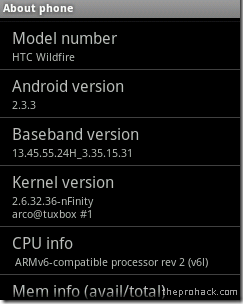
2. It will ask for a serial, enter your phone's serial number. "Go to Settings > About Phone." Then copy the code given.
3. Enable USB Debugging. "Settings > Application > Development."
4. Install the HTC Driver. Mine is in the SD card came with the phone.
5. Now extract and run the alpharevx.exe. Enter the code given earlier and connect your phone. It should detect your phone and display USB Debugging mode.
6. Once it's completed, you can remove your phone.
7. Turn off your phone, then press volume down + power button. It should display AlphaRevX and S-Off on top of it.

Installing Clockwork Recovery:
1. Download the file PC49IMG.zip. DOWNLOAD
2. Format your SD card to FAT 32 and add the downloaded file.
3. Go into HBoot Mode by pressing volume down + power. It will ask you to update firmware, press Volume UP to select YES. When it's done, Boot into Normal Boot, delete the PC49IMG.zip.
4. Download su-2.3.6.1-ef-signed.zip. DOWNLOAD
5. Go to HBoot again and select Recovery
6. Click install zip from SD card > Choose zip from SD card. Then locate the su-2.3.6.1-ef-signed.zip and let it install. DONE! Your phone is rooted!

Flashing CyanogenMod:
1. Download the latest CyanogenMod version HERE and Google Apps HERE, add to SD card. 
2. ReBoot your phone to Recovery by pressing Volume Down + Power Button.
3. Click install zip from SD card > Choose zip from SD card. Locate 'update-cm-7.0.3-buzz-signed.zip.'
4. Let it update. Mine takes less than 10 minutes.
5. Click install zip from SD card > Choose zip from SD card. Then locate 'gapps-gb-20110613-signed.zip' and install it.
6. Once done, ReBoot into Normal Boot. Your phone should now boot into CyanogenMod. Enjoy Android 2.3.3 Gingerbread!!!

You can also use the instructions above in other Android phones. Go to CyanogenMod Wiki for the complete information and lists of supported devices.

Apple's iPad 2: What to expect

Wednesday, March 2, 2011 0 comments

It's been exactly six months since my last post and I realized that I need to update this blog. I just remember that Apple will have an announcement about its second-gen slate. I'm not an Apple fan-boy, I just want to update my blog, sorry Apple users.

Apple is finally ready to roll out its next-generation slate. The iPad 2 Announcement is set for March 2, 2011, Wednesday. The first-gen iPad actually looks quite good (not bad at all), but it would have been better with Flash and Camera. Apple event on Wednesday will take place in San Francisco's Yerba Buena Center for the Arts.

What we expect from Apple's latest tablet? We all know that Apple's iPad 2 will compete with rival companies such as Motorola (Motorola Xoom) and Research in Motion (BlackBerry Playbook). I'm expecting a lighter and thinner iPad with a front-facing camera, possibly a mini-USB port and Intel's brand-new connection technology called Thunderbolt, also known as Light Peak.

Apple Event Live Video Channel here: CHANNEL 1. That's all for today. Thanks for reading.

BlackBerry OS 6.0 in Q3 2010

Saturday, September 25, 2010 0 comments
After the Blackberry OS 5, Research In Motion Ltd. announced the new BlackBerry OS 6.0. RIM's new operating system for BlackBerry smartphones will be released in the 3rd quarter this year. The BlackBerry 6 features a new web browsers and new user interface. Research In Motion Co-CEO Mike Lazaridis said, it has more media capabilities and tabbed browsing for access to multiple web pages at the same time.

The latest BlackBerry OS 6.0 is now available for BlackBerry Torch 9800. According to the report, It is also available for Bold 9700, Bold 9650 and Pearl 3G in third quarter of the year 2010. It has been said that, BlackBerry 6 will come both in QWERTY and touchscreen devices. Still, no official reports or updates for BlackBerry Storm 2 9550. Here is the Sneak Peek for RIM's BlackBerry OS 6.0.


Intel Unveils Core i9: 6-core CPU

Tuesday, March 2, 2010 1 comments
The high-end consumer and business microprocessors will reveal a new six cores of speed CPU. After the series of Celeron, Pentium and other Core processors, the Intel will unveil it's new creation, the Intel Core i9. Intel's upcoming processor codenamed Gulftown. It is a 6-core chip with 32-nanometer processor. The Intel Core i9 performs up to 50% faster than Intel's current Core i7 chip and a 50% increase in L3 cache at 12 MB.